Settings and your data
Your profile, HANSEI's settings, a copy of your data, light and dark, and how to leave.
This page shows how to set up HANSEI the way you like it. It also shows how to take a copy of your journal, and how to leave HANSEI.
Your menu
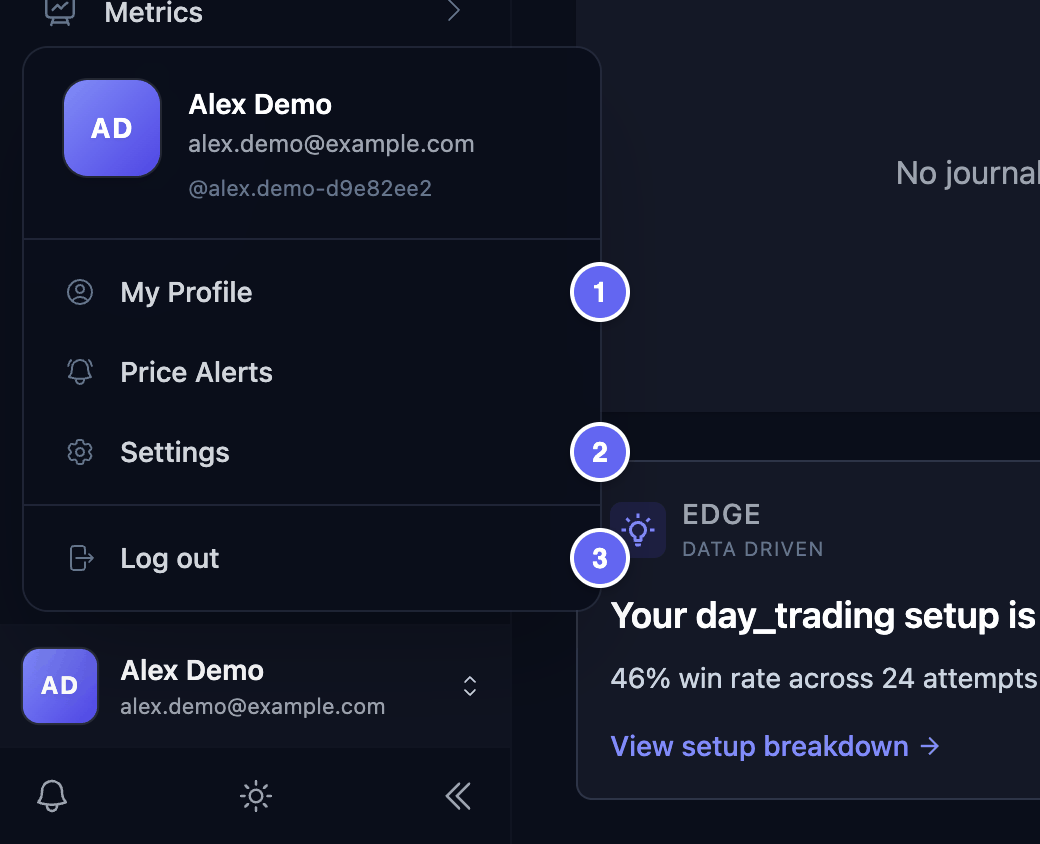
Your name is at the bottom of HANSEI's menu, with your picture or your initials. Click it to open your menu.
- My Profile — your name, your picture, your timezone and how times show.
- Settings — how HANSEI counts and shows your numbers, and a copy of your data.
- Log out — signs you out of ClawBack in this browser. See Leave HANSEI.
On a phone, first tap ☰ at the top left. The menu opens.

My Profile
- Click your name at the bottom of the menu, then My Profile.
- Stay on the Profile tab. Change what you need. Each box is explained below.
- Click Update Profile.
The boxes:
- Profile Picture — click Upload photo and pick a picture (PNG, JPG or WebP). Then click Save photo. It shows next to your name in the menu. Without a picture, your initials show.
- Full Name — the name HANSEI shows in the menu.
- Timezone — the time HANSEI uses. Usually you pick the place where you live, for example London (GMT/BST) or Eastern Time (ET) for New York. If your city isn't in the list, pick one with the same clock time. If none has it, pick the closest one; your times then show a little off. It starts as UTC.
- Time format — 24-hour (14:00) or 12-hour (2:00 PM).
The timezone matters. HANSEI shows your trade times in it. It also reads the times in your import files in it, when a file doesn't say its timezone. Does your broker's file show times in another timezone, such as New York time? Then read Set your timezone before your first import.
You can't change your Username or your Email here. Your email is the one of your ClawBack account.
When the page opens, a red Error box may show on the right. Close it with its ✕. Your profile still saves.
App Settings
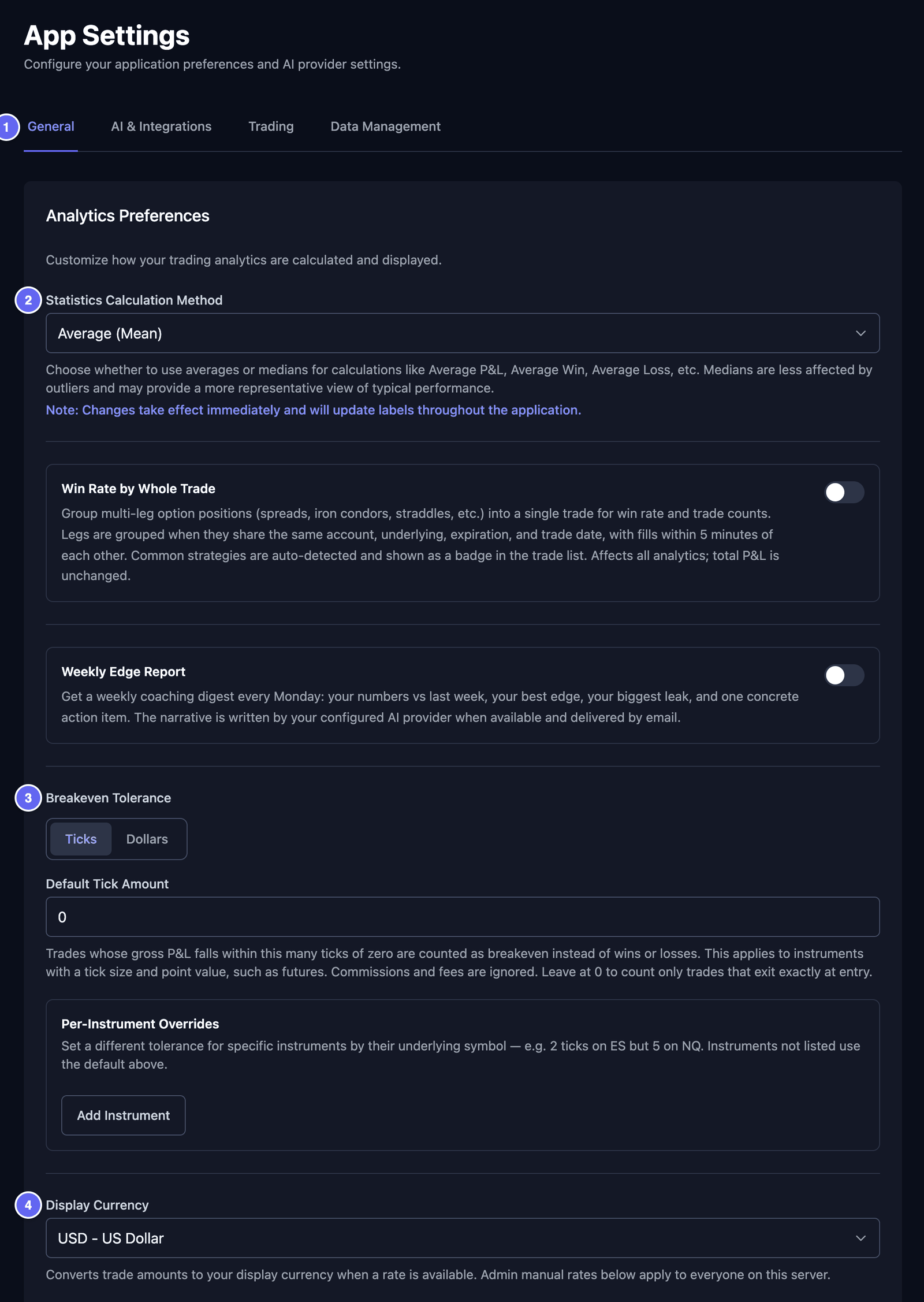
- Click your name at the bottom of the menu, then Settings. The App Settings page opens.
- Click a tab: General, Trading or Data Management.
You don't need the other tab and cards on this page. Leave them as they are.
The General tab
The Analytics Preferences card decides how HANSEI counts your numbers. When you are done, click Save Analytics Settings at the bottom of the card.
- Statistics Calculation Method — how HANSEI works out typical numbers, such as your average win. Average (Mean) adds them all up and divides. Median takes the one in the middle. One very big win or loss moves the median less.
- Breakeven Tolerance — breakeven means a trade that ended at about zero: no real win and no real loss. If you trade stocks, click Dollars. Then type an amount in Dollar Amount. A trade that ends within that amount of zero counts as breakeven, not as a win or a loss. For example, with 5, a trade that made $3 counts as breakeven (the numbers are an example). HANSEI looks at the result before fees.
- Display Currency — the money HANSEI shows amounts in, for example USD - US Dollar. HANSEI converts the amounts when it has an exchange rate.
- Default Stop Loss Type and Default Take Profit Type — you don't have to use these. A stop loss is the price where you plan to get out, to limit a loss. A take profit is the price where you plan to take your profit. Here you can set one for every trade that has none. Pick Percentage or Dollar amount, then type the amount in the box under it. Leave the box empty for none. HANSEI adds it to new and imported trades. When you save, it also adds it to your trades that don't have one yet. A stop loss or a take profit you typed yourself stays as it is.

The Trading tab
- Trading Accounts — Manage Accounts opens the page where you add and change your accounts. See Accounts and cash.
- Trade Import Settings — decides if an import joins trades in the same stock into one trade. Read about it before your first import: trade grouping.
- Named fee profiles — a fee profile holds your broker's commissions: what it charges you for each trade. Click New fee profile to make one. Then pick the accounts that use it under Assigned accounts. Files you import later into those accounts use it. You can skip this.
Export your data
You can save a copy of your journal on your device.
- Click your name at the bottom of the menu, then Settings.
- Click the Data Management tab.
- Click Export Trades CSV or Export All Data. The file downloads to your device.
What you get:
- Export Trades CSV — your trades as a CSV file. A CSV file is a simple table. You can open it in a spreadsheet app, such as Excel or Google Sheets.
- Export All Data — one file with most of your journal: your trades, your journal entries, your tags, your settings and your equity history.
What is not in them:
- Export All Data doesn't hold your accounts, or your deposits and withdrawals. It doesn't hold your playbooks or the pictures you added to trades and journal entries either.
- Export Trades CSV holds every trade, whatever you picked in the account picker. It doesn't say which account a trade is in. It leaves out the trades of archived accounts, and of accounts with Include in reports off. To include them, restore the account and tick Include in reports first. See Change, archive or delete an account.
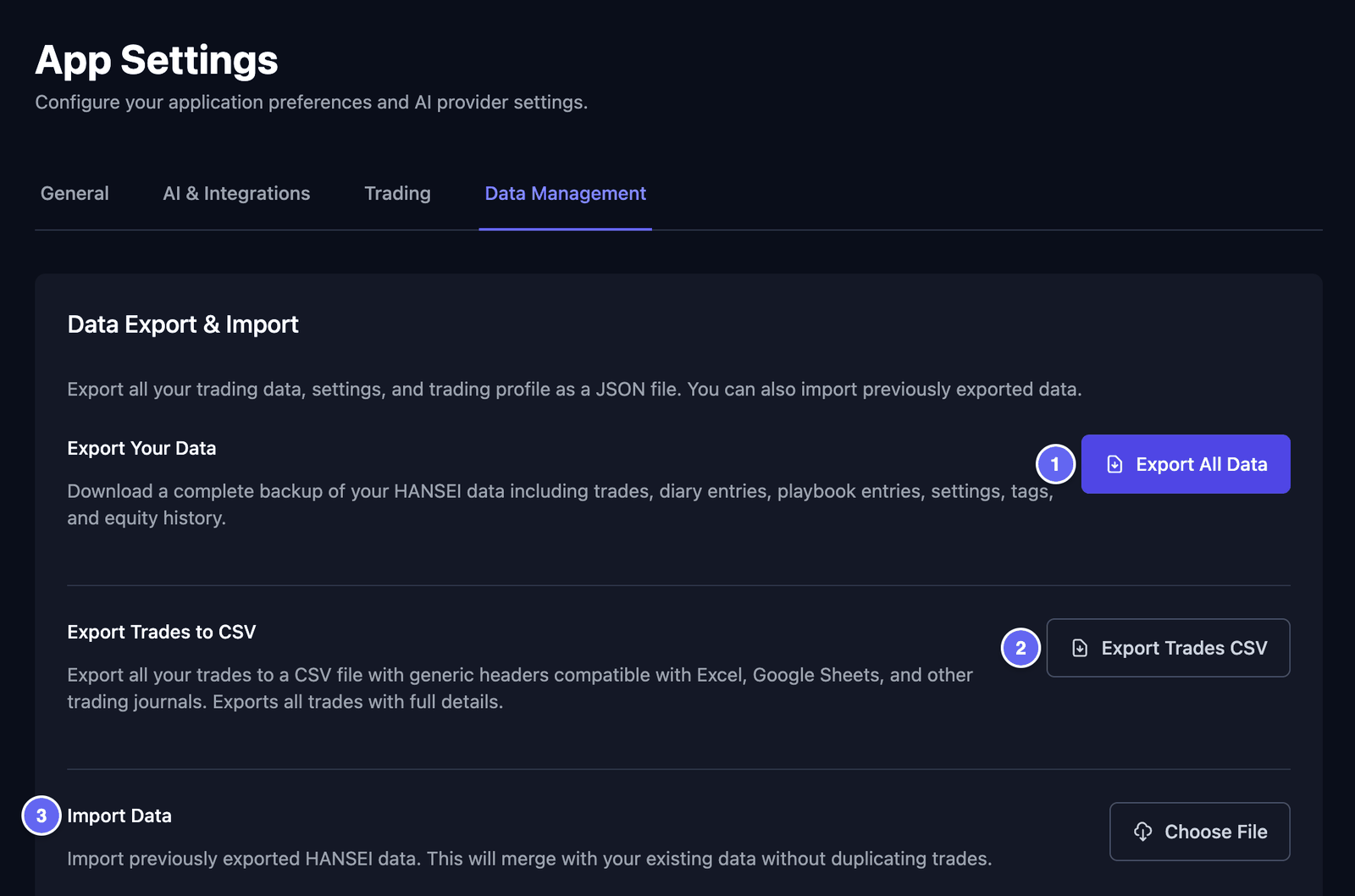

Import Data brings back a file you made with Export All Data. Click Choose File and pick the file. Then click Import Data. It adds to your journal. A trade that is already there isn't added twice. Your accounts and your deposits and withdrawals don't come back, because the file doesn't hold them.
Import Data is not for files from your broker. To bring in trades from your broker, see Import your trades.
Light and dark
The sun or moon at the bottom of HANSEI's menu switches between light and dark. In dark mode you see a sun. In light mode you see a moon.
HANSEI opens in the same mode as the rest of ClawBack. When you switch it here, the other ClawBack pages follow, in the same browser.
On a phone, first tap ☰ at the top left. The menu opens.
Leave HANSEI
To go back to GENKAN: click Back to GENKAN at the top of HANSEI's menu. This button shows in your ClawBack language.
To sign out:
- Click your name at the bottom of HANSEI's menu.
- Click Log out. A page with a Sign out button opens.
- Click Sign out.
You are now signed out of ClawBack in this browser, not only of HANSEI. You land on the ClawBack home page. Changed your mind on the Sign out page? Use your browser's Back button.
Your journal is kept when you leave. It is there the next time you open HANSEI.