

HANSEI trade journal


Your private trade journal: import, review and learn from your trades.
HANSEI is a trade journal. It is a private place for your own trades. You bring your trades in, look back at them and write notes. Looking back honestly helps you learn.
HANSEI never trades for you. It only records trades you have already made.
Open HANSEI
You can open HANSEI when your plan includes it. To choose a plan, see Billing.
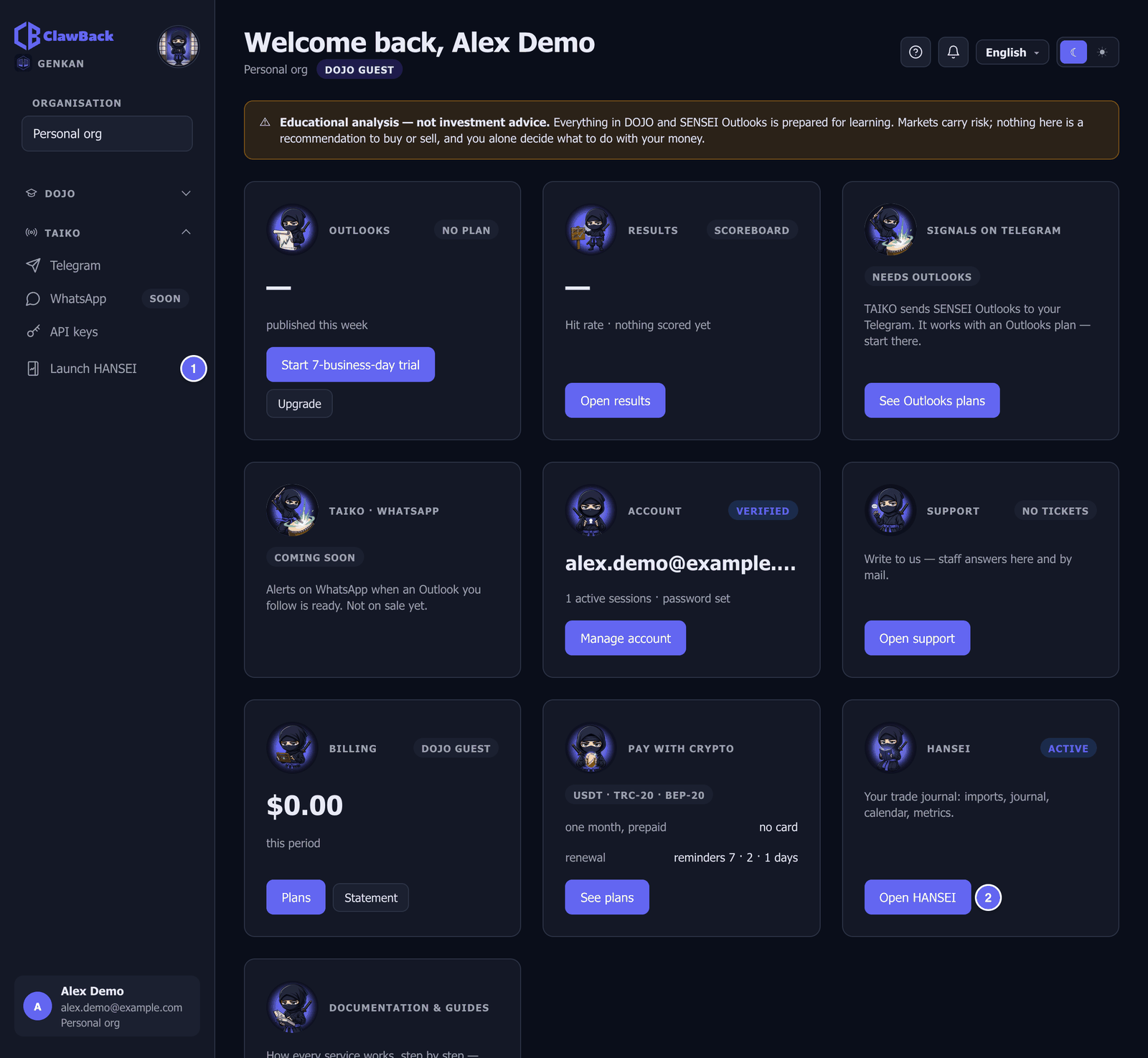
There are two ways to open it:
- In the menu on the left, click Launch HANSEI.
- Or, on GENKAN's home page, click Open HANSEI on the HANSEI tile.
You use the same ClawBack account. You don't need a new password.

The first time
The first time you open HANSEI, your journal is empty.
A short tour may open at the top of the page. Follow it with its buttons, or click Skip tour.
Then do two things:
- Set your timezone. HANSEI uses it to read the times in your files. See Set your timezone.
- Bring in your trades. See Import your trades.
The screen
HANSEI's menu is on the left. On a phone, tap ☰ at the top left to open it.
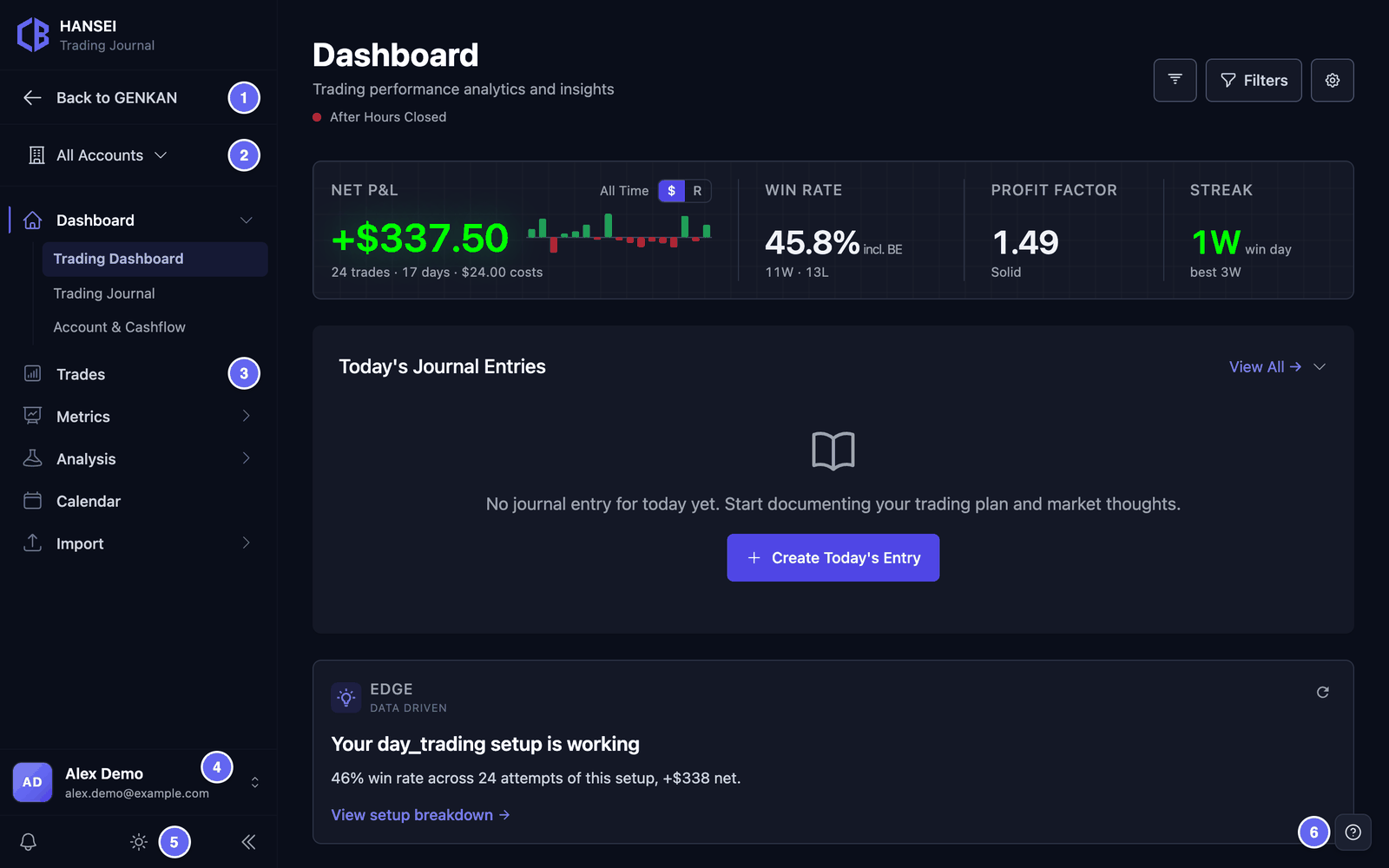

The menu has these groups:
- Dashboard — Trading Dashboard shows your results at a glance. Trading Journal holds your daily notes. Account & Cashflow shows money in and out.
- Trades — the list of all your trades.
- Metrics — numbers and charts about your results.
- Analysis — Playbooks & Grading, Trade Management and Prop Firm.
- Calendar — your results, day by day.
- Import — CSV Import brings your trades in.
The account picker is for when you trade with more than one account. All Accounts shows the trades of all of them.
What's inside
Each page below explains one part of HANSEI:
- Import your trades — bring your trades in from a CSV file.
- The dashboard and the calendar — your results at a glance, and day by day.
- Your list of trades — find, sort and filter your trades.
- One trade — open a trade, add notes, tags and pictures, or add a trade by hand.
- Your trading journal — write notes about your trading days.
- Metrics and playbooks — numbers about your results, and your own trading rules.
- Accounts and cash — your broker accounts, deposits and withdrawals.
- Settings and your data — your profile, your settings and a copy of your data.
What HANSEI doesn't do
You may see buttons for some of these. They don't work in HANSEI.
- No link to your broker. HANSEI doesn't connect to your broker. Broker Sync isn't available. Use CSV Import instead.
- No live prices. HANSEI shows no live prices. It can't show a stock's price chart or replay a trade.
- No AI. The Analyze Trade, AI Assistant and AI Analysis buttons don't work.
- No messages. HANSEI sends no e-mails and no price alerts.
Light and dark
HANSEI uses the same light or dark look as the rest of ClawBack.
To switch, click the sun or moon at the bottom of HANSEI's menu. Your other ClawBack pages switch too.
Help
Every HANSEI page has a small ? button in the bottom-right corner.
- Click ?. A short help panel opens in your ClawBack language.
- Click Open the guide for this page. This guide opens in a new tab.
Go back or sign out
- To go back to GENKAN: click Back to GENKAN at the top of HANSEI's menu. It shows in your ClawBack language.
- To sign out: click your name at the bottom of the menu. Click Log out, then Sign out.
Signing out of HANSEI signs you out of ClawBack in that browser.
Your journal is yours
Your journal is private to you.
If your plan ends, your journal is kept. It comes back when you get HANSEI again.
You can also save a copy of your data as a file. See Export your data.