Your trading journal
Write notes about your trading days: your plan, what happened and what you learned.
A journal entry is your notes about one trading day. You write your plan before the day, what happened, and what you learned. An entry is about the whole day. Notes about one trade go on that trade's page: see Executions, tags and notes.
Open the journal
- In HANSEI's menu, click Dashboard.
- Click Trading Journal.
The Trading Journal page opens.
The journal page
The page opens on List: your entries, newest first.
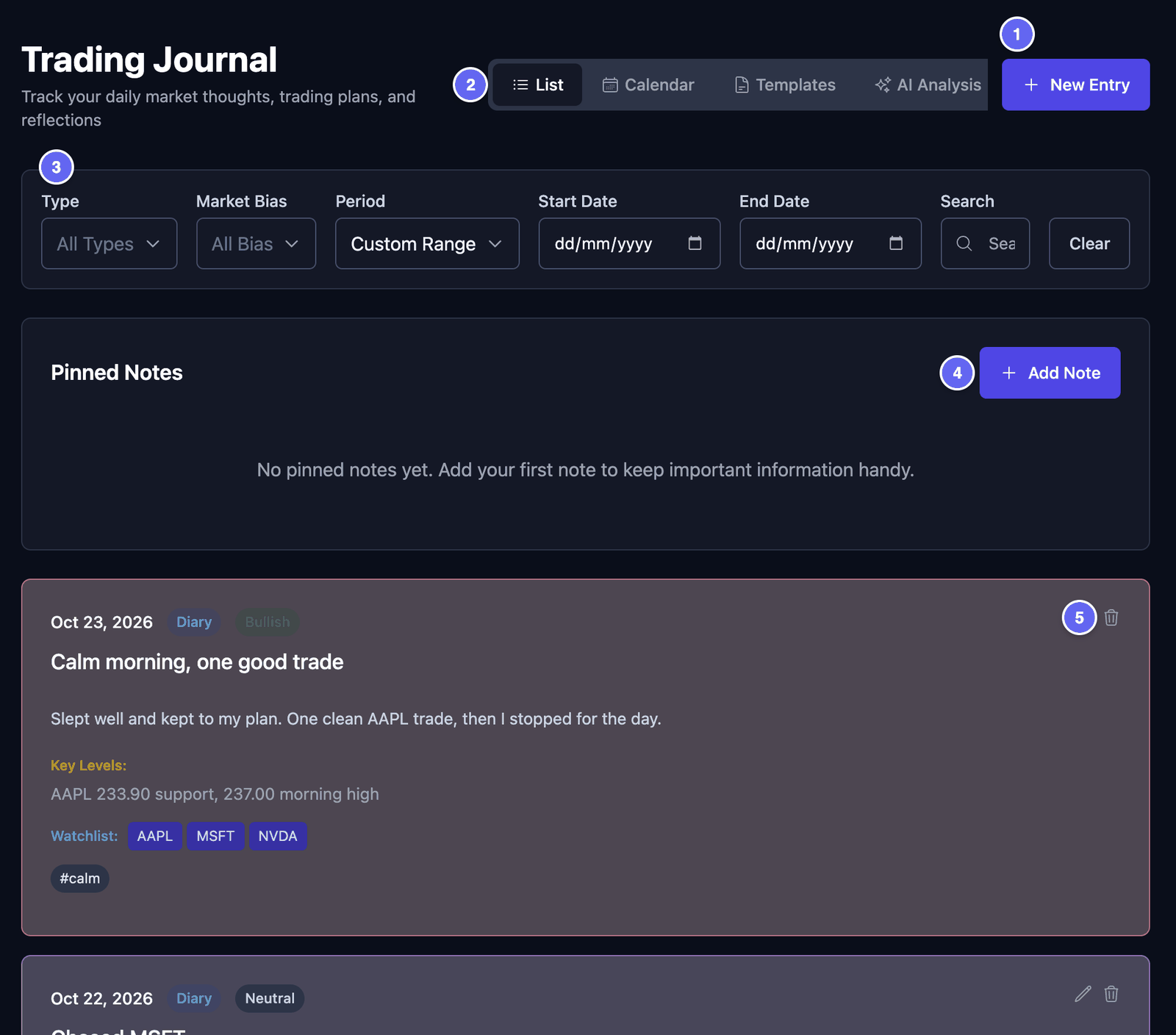

Each entry shows its date, its type and its market bias. Then come its title and the start of your text. It can also show key levels, watchlist symbols, linked trades, tags and pictures.
- Click a linked trade to open that trade.
- Click the pencil to read the whole entry.
- The list shows 20 entries a page. Use Previous and Next at the bottom.
Find entries with the filters:
- Type — show only Diary or only Playbook entries.
- Market Bias — show only Bullish, Bearish or Neutral entries.
- Period — This Month, Last Month, or your own dates in Start Date and End Date.
- Search — type at least two letters. Type
#to pick one of your tags. - Clear — remove all filters.
Pinned Notes sit above your entries. A pinned note has no date. Use it for things you want to see every time, like your own trading rules.
- Click Add Note.
- Type a Title (Optional) and the Content.
- Click Add Note.
To change a pinned note, click its pencil. To delete it, click its bin.
On the dashboard: the Today's Journal Entries card shows today's entry. With no entry yet, click Create Today's Entry. A small form opens. Pick a Market Bias, write your Quick Notes, then click Save Entry. View All opens the journal. See The cards.
Write an entry
You can write an entry before the market opens, after it closes, or both. Only Entry Date must be filled. You can write more than one entry for the same day. Each one is saved on its own.
Your plan
- On the Trading Journal page, click New Entry.
- Entry Date — the day the entry is about. It starts as today.
- Entry Type — choose Diary Entry for notes about your day. Choose Playbook Setup to describe one kind of trade you take. A Playbook Setup needs a Title.
- Title — a short name, like Calm morning.
- Market Bias — which way you expect prices to go. Bullish means you expect prices to rise. Bearish means you expect them to fall. Neutral means you expect no clear move. No bias means you don't say.
- Journal Entry — write your thoughts and your plan for the day.
- Key Levels — prices you want to watch, like
AAPL 233.90.
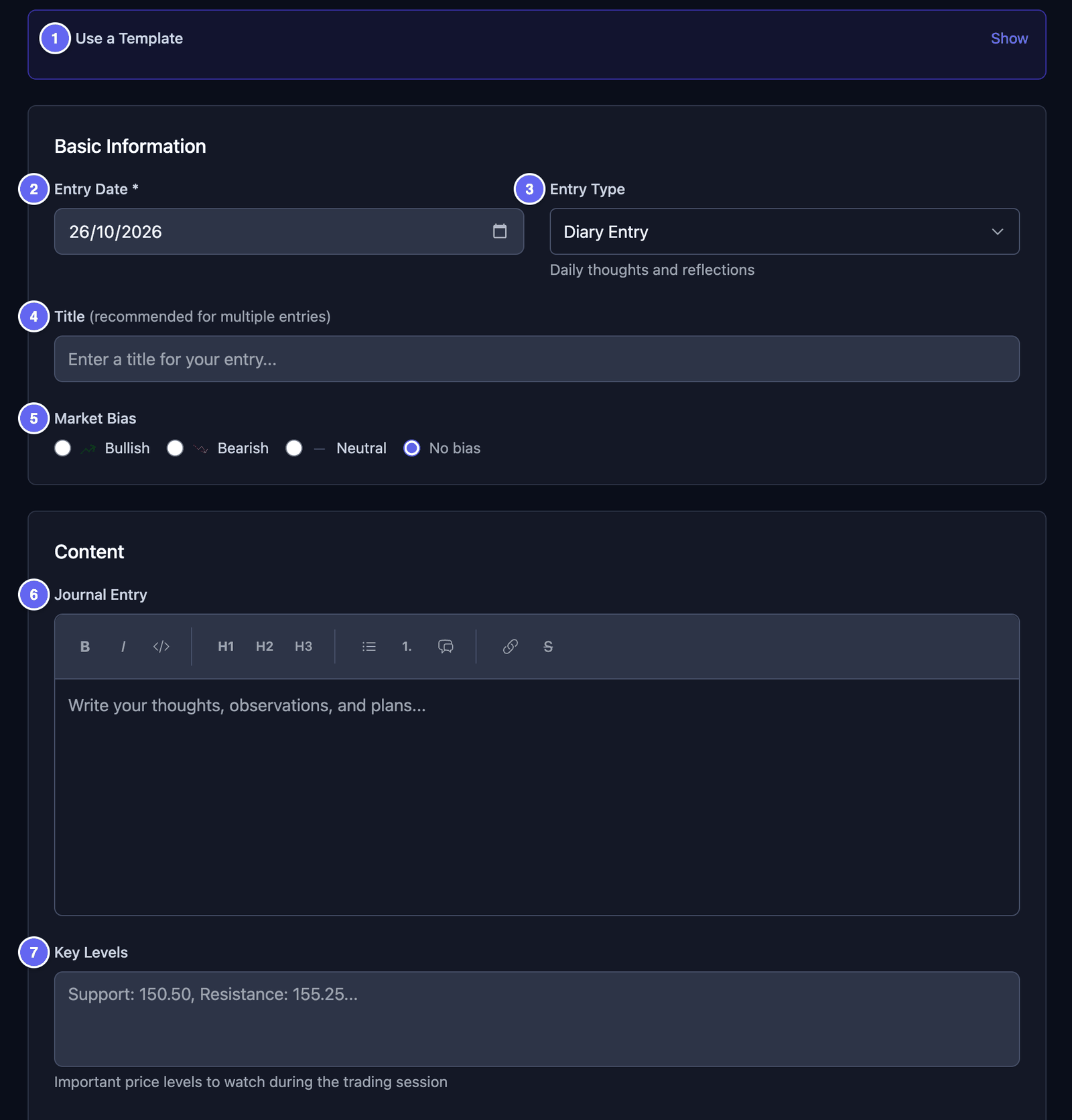

The bar above the text box changes how your words look. It has bold (B), italic (I), code, three heading sizes, a bullet list, a numbered list, a quote, a link and strikethrough (S).
- For bold, italic or strikethrough, first select the words. Then click the button.
- For a heading or a quote, select nothing. Click the button, and it goes where the cursor is.
The Playbook Setup entry type is only a kind of journal entry. It is not the same as a playbook on the Playbooks & Grading page. See Playbooks and grading.
Trades, tags and lessons
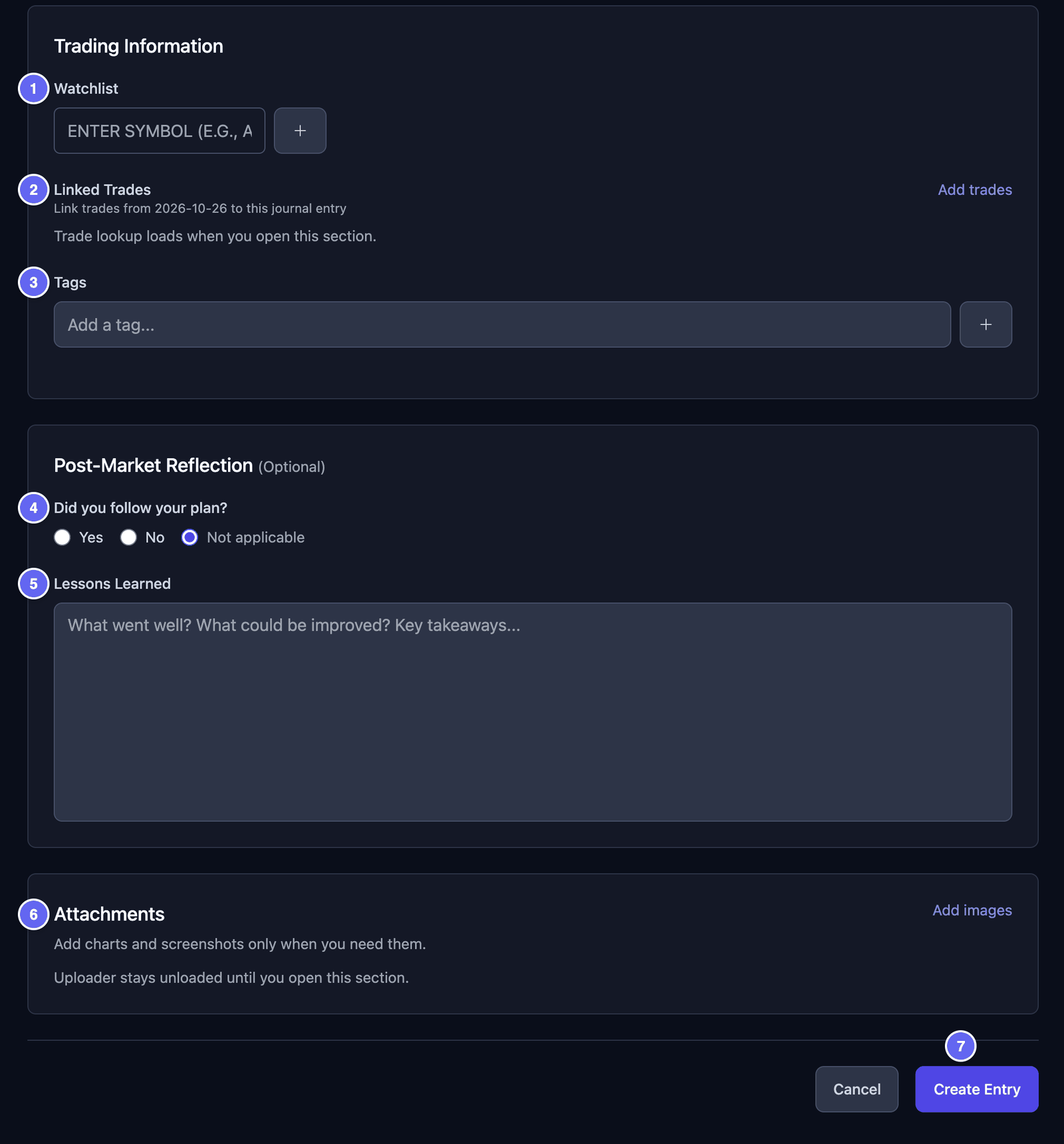
Lower on the same form:
- Watchlist — type a symbol, like
AAPL, then click +. Add one symbol at a time. - Linked Trades — click Add trades, then tick the trades you want. You can only link trades from the entry's date.
- Tags — type a word, like
calm, then click + or press Enter. Tags help you find entries later. - Did you follow your plan? — choose Yes, No or Not applicable.
- Lessons Learned — what went well, and what you would do differently.
- Attachments — click Add images, then Choose files. You can also drag pictures in, or paste a screenshot.
- Click Create Entry.

Your entry is saved, and the journal opens again.
Pictures can be JPEG, PNG or WebP files. They upload when you click Create Entry. Keep all the pictures of one save under 50 MB together.
Use a template
A template is a ready-made start for an entry. For example, a Morning plan with the questions you ask yourself every day. HANSEI has no ready-made templates. You make your own.
Make a template:
- On the Trading Journal page, click Templates.
- Click New Template.
- Type a Template Name, like Morning plan. Add a Description if you like.
- Choose the Entry Type: Diary or Playbook.
- Under Template Content, fill in what every entry should start with. For example, your questions in Content Template, or tags in Default Tags (comma-separated).
- Under Post-Market Reflection, you can fill in Lessons Learned Template too.
- Click Save Template.
Use a template:
- Click New Entry.
- Choose the Entry Type first. You only see templates of that type.
- In the Use a Template box, click Show.
- Click your template. It fills in the form.
- Change what you need, then click Create Entry.
You can also click Apply Template on a template in Templates. A new entry opens, already filled in.
Each template also has Edit, Duplicate and Delete.
Set as default template for new entries only marks the template with a Default tag. It doesn't fill in new entries by itself. Pick the template under Use a Template.
Edit or delete an entry
Edit an entry:
- On the List, click the pencil on the entry.
- Change what you want.
- Click Update Entry.
Delete an entry:
- On the List, click the bin on the entry.
- Click Delete.
A deleted entry can't be brought back. The edit form has no Delete button. You delete from the list.
On the edit form, the bin on a saved picture deletes it at once. It doesn't ask first.
See entries by date
- On the Trading Journal page, click Calendar.
- Use the arrows to change the month. Today brings you back to this month.
Each day shows up to two entries. Their colour follows the market bias: green for Bullish, red for Bearish, grey for Neutral and blue for no bias.
Click a day:
- With one entry, the entry opens.
- With more than one, the list shows that day's entries.
- With no entry, a new entry opens for that date.
The calendar shows your newest entries only, as on the first page of the list. For an older month, set Period or the dates first.
This is not the Calendar in HANSEI's menu. That one shows the results of your trades: see The dashboard and the calendar.