Accounts and cash
Keep the trades of each broker account apart, and record the money you put in and take out.
A broker is the company you trade through. In HANSEI, an account is a name for one of your broker accounts. It keeps the trades of each account apart. HANSEI never connects to your broker: your trades come from the files you import.
Pick an account
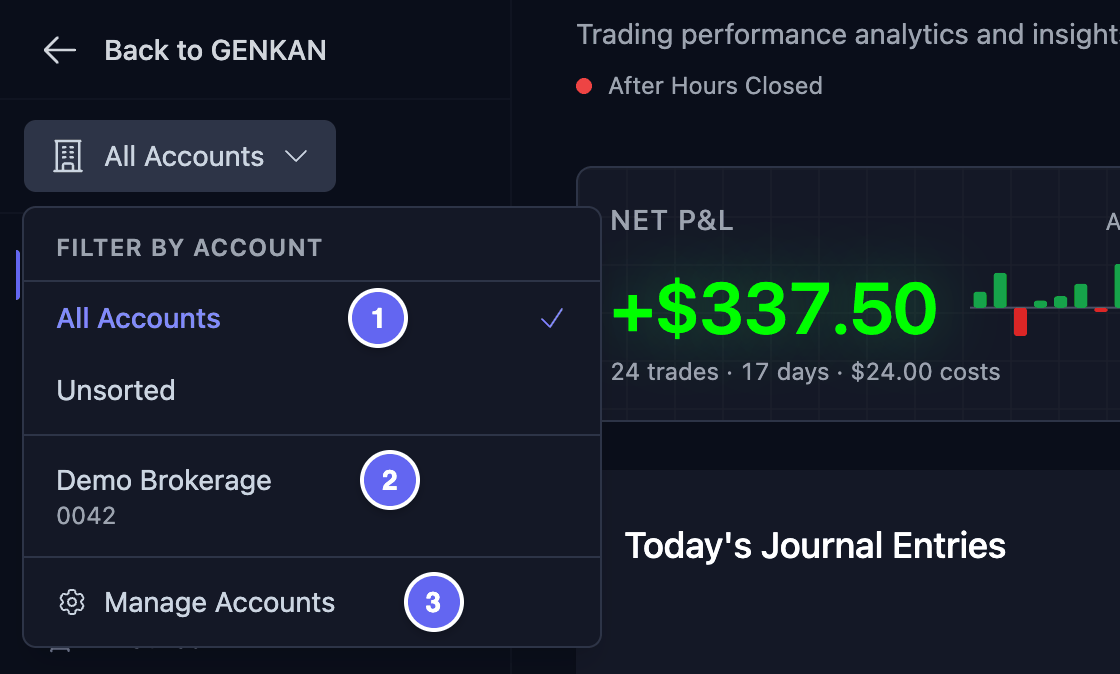
The account picker sits at the top of HANSEI's menu, under Back to GENKAN. At first it says All Accounts.
- Click the account picker. A list opens.
- Click what you want to see.
In the list you find:
- All Accounts — the trades of every account.
- Unsorted — trades that have no account.
- One of your accounts, for example Demo Brokerage — only the trades of that account.
- Manage Accounts — opens the Trading Accounts page, where you add and change accounts.
Your choice changes what the Dashboard, Trades, Calendar and most Metrics pages show, and their numbers. A small dot next to the picker means you didn't pick All Accounts. HANSEI remembers your choice.

If HANSEI's menu is folded to icons, the picker is hidden. Click the double arrow at the bottom of the menu to unfold it.
Add an account
Add each broker account you trade with.
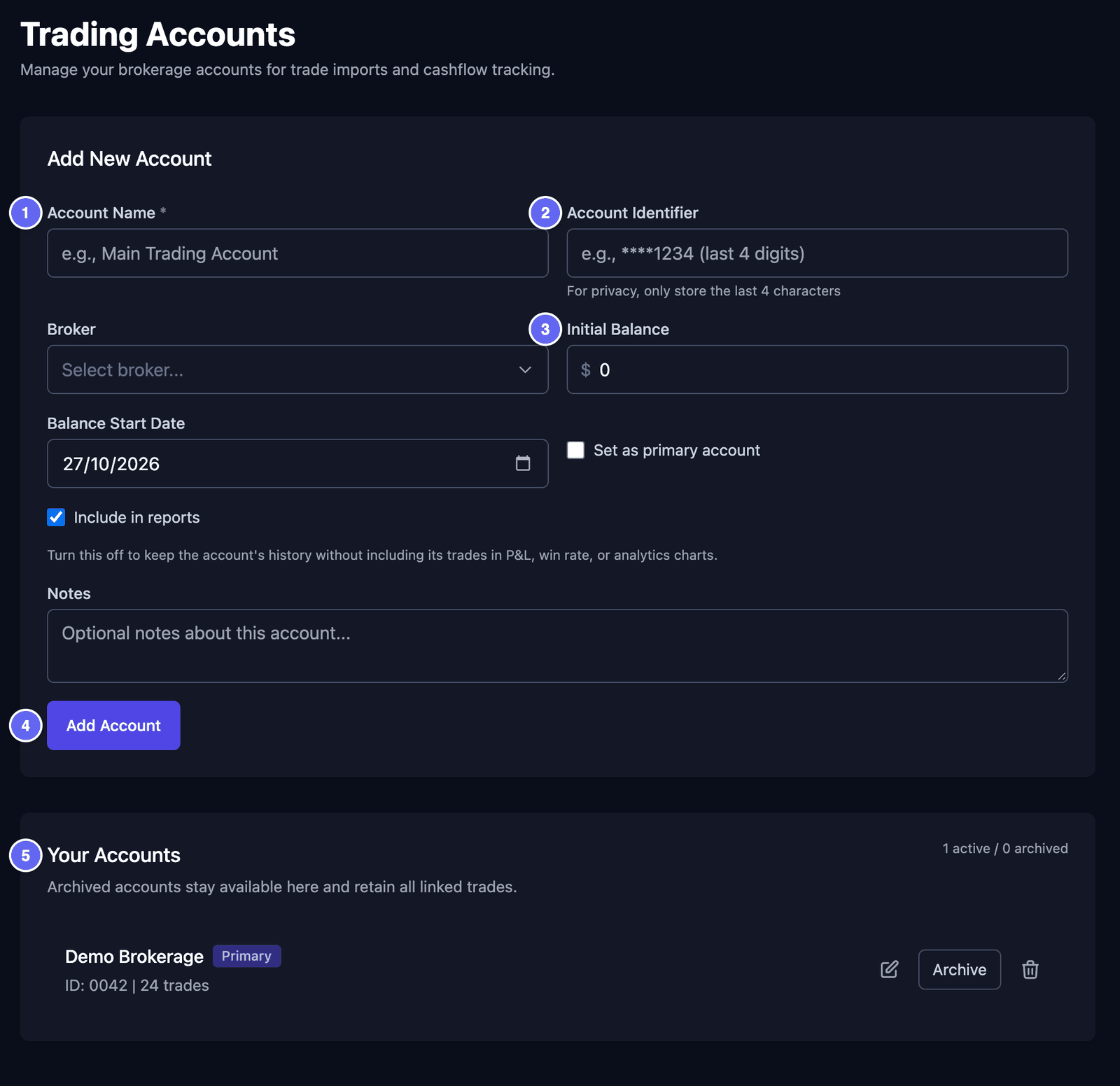
- Click the account picker at the top of the menu.
- Click Manage Accounts. The Trading Accounts page opens.
- Under Add New Account, fill in the boxes. Each box is explained below.
- Click Add Account.
The boxes:
- Account Name — a name you choose, for example Main account. You must fill in this box.
- Account Identifier — only the last 4 characters of your account number, for example
0042. Never type the whole number. - Broker — pick your broker from the list. If it isn't there, pick Other.
- Initial Balance — the money in the account at the start.
- Balance Start Date — the day that amount was right. Pick a day on or before your first trade in HANSEI.
- Set as primary account — tick it for your main account. It then shows first in lists.
- Include in reports — leave it ticked. If you untick it, this account's trades stay in HANSEI. But they no longer count in your numbers, such as your P&L and your win rate. P&L means profit and loss: the money you made or lost. Win rate is the share of your trades that made money.
- Notes — anything you want to remember. You can leave it empty.

When you import a file, pick the account under Trading Account. The trades then go into that account. See Import your trades.
An import can also add an account by itself. This happens when your file names an account that HANSEI doesn't know yet. Such an account starts with a balance of 0, on the day of the import. Change it and type the real Initial Balance and Balance Start Date.
Change, archive or delete an account
Open the Trading Accounts page: click the account picker, then Manage Accounts. Under Your Accounts, each account has three buttons.
To change an account:
- Click the pencil next to it. The form at the top fills in with the account.
- Change what you need.
- Click Update Account. To stop without saving, click Cancel.
To archive an account: click Archive, then Archive again in the window that opens. Archive means "put away". The account and its trades stay in HANSEI. But the account leaves the account picker, and its trades no longer count in your numbers.
Archived accounts show under Archived accounts, lower on the page. View history shows the trades of one of them.
To bring an archived account back:
- Under Archived accounts, click Restore, then Restore again in the window.
- Click the pencil next to the account.
- Tick Include in reports, then click Update Account. Until you do this, its trades still don't count in your numbers.
To delete an account: click the bin next to it. A window opens.
- Click Delete Account to remove the account and its deposits and withdrawals. Its trades stay in HANSEI.
- To remove its trades as well, first tick Also permanently delete all trades associated with this account. The button then says Delete Account and Trades.
- To stop, click Cancel.
You can't undo a delete. If you only want to hide an account, archive it.
Deposits and withdrawals
A deposit is money you put into your broker account. A withdrawal is money you take out. Record them in HANSEI, so the balance of the account stays right.
- In the menu, click Dashboard, then Account & Cashflow.
- In the Add Transaction box, pick the Account.
- Under Type, pick Deposit or Withdrawal.
- Type the Amount.
- Pick the Date.
- If you like, type a Description, for example Monthly savings.
- Click Add Transaction.
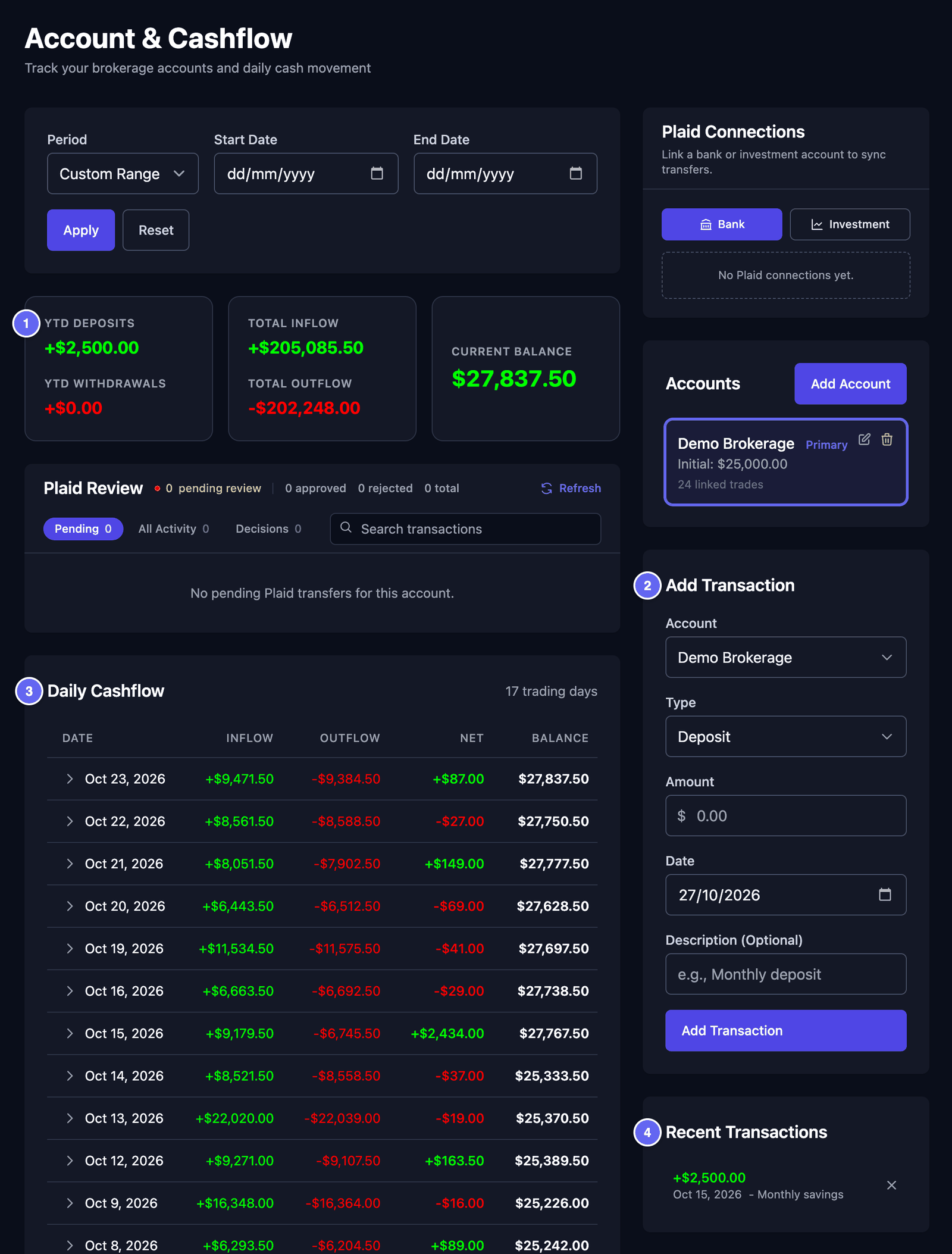

What the page shows:
- The totals at the top. YTD Deposits and YTD Withdrawals count since 1 January this year (YTD means year to date). Total Inflow and Total Outflow are all the money in and out. Current Balance is the money in the account now.
- Daily Cashflow — one row per trading day. Inflow is money coming in: the stocks you sold and your deposits. Outflow is money going out: the stocks you bought, fees and your withdrawals. Net is the difference. Balance is the money in the account at the end of that day. Click a day to see its trades and transfers.
- Recent Transactions — your last deposits and withdrawals. To remove one, click its ✕. You can't change one: remove it, then add it again.
The balance starts from the account's Initial Balance, on its start date. Then HANSEI adds the money in and takes away the money out.
To see another account, click it in the Accounts box on the right. To see only some days, pick a Start Date and an End Date, then click Apply. Reset shows all days again.
Equity history
Equity is what your account is worth on a day: your cash plus the value of the stocks you hold. In Equity History you type it yourself, one amount per day. It is one amount for all your accounts together.
HANSEI uses these amounts for the K-Ratio, on Metrics › Performance. The K-Ratio shows how steadily your account grew. It needs at least 3 amounts.
- In the menu, click Metrics, then Performance.
- Find the note K-Ratio Requires Account Equity Tracking.
- Click View Equity History. A calendar opens.
- Click a day.
- Type the Account Equity, then click Save.
To change a day, click it again. Delete Entry removes its amount. Under the calendar, Month Start, Month End and Monthly Change sum up the month.
The note on Performance shows only until HANSEI can work out your K-Ratio. To come back to Equity History later, save the page as a bookmark in your browser.